First start
Your new device
BIYOND


Charging the device
- Connecting the QI charging station: Connect the QI charging station to the supplied power adapter using the USB-C cable. Plug the adapter into a socket.
- Correct placement of BIYOND: Place your BIYOND on the QI charging station. Make sure that the protrusion on the charging station fits exactly into the recess on the bottom of your BIYOND – this way it will sit firmly and cannot slip.
- Starting charging: The small LED on the right side of the QI charging station will start flashing green – this indicates that charging has begun.
- LED indication on BIYOND: Once the battery reaches the base voltage, BIYOND starts pulsing white. This means it has enough energy to switch to normal charging mode.
- The first charge can take up to 4 hours; the device is supplied in hibernation mode
- How to tell the charging status: The length of the white light in each 5-second pulse cycle shows how charged the battery is – the longer it stays on, the more charged it is.
- Fully charged: Once the LED is solid white, your BIYOND is fully charged. The small LED on the right side of the QI charging station now glows solid green. At this point, remove it from the charger to save the battery.
- Automatic recharging: If you leave BIYOND on the charging station, it will remain in automatic recharging mode for up to 5 hours before recharging is interrupted to protect the battery. It will automatically restart once the charge level drops to 90%. However, it is better to avoid this, as it shortens the battery life.
Creating an account
If an account has been created for you, or you do not have a card with a module code, you can skip this step.
- While charging, take a look at www.biyond.cz/bum/ If you do not have a BIYOND account, please register. If you already have one, log in.
- Guide www.biyond.cz/bum/ will help you automatically create a BIYOND account. You will see your login credentials. Write them down (they will also be sent to you by email).
- You will also need them later for logging in to the BIYOND app.
Activating program modules
If you do not have a card with a module code, you can skip this step.
- Immediately after creating your account, the guide will show you modules to choose from.
- Click on the desired module, and at the bottom there is a field for entering the code from the card.
- After you fill it in and confirm, the module will be activated in your account and you will later see it in the mobile app.
Downloading the app
If you already have the BIYOND app, skip this step.
Download the BIYOND app from Google Play or the App Store.
Connecting BIYOND to the app
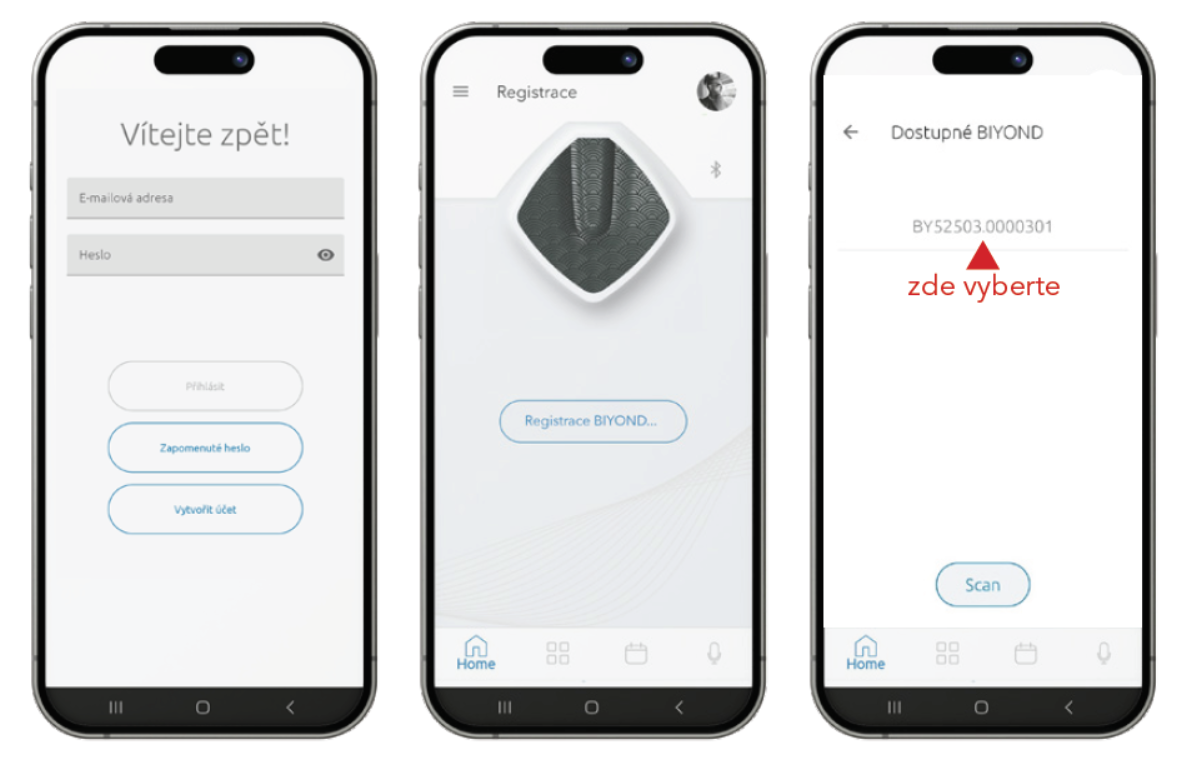
- Open the BIYOND app and log in using the details you used when registering on the website (see step 2). If you are registered on biyond, enter the email and password that came by email and use the button Log in - DO NOT REGISTER
- Connect your BIYOND device to the app.
- After tapping the SCAN button, select the found BIYOND to pair. It may look like e.g. BY52503.0000302 - you need to tap on this text!
- In the menu at the bottom (4 squares) you will see 3 basic modules and others that you previously selected for activation using code cards, or that you purchased on biyond and activated by payment.